Home › Documentation › Getting started
Getting started
This page takes a single Windows workstation from nothing to a completed first backup. It takes about fifteen minutes plus the time for the initial upload. For other platforms, follow the same outline and refer to the relevant page under Agents.
Before you start
You need:
- The tenant address and an administrator account for the console, from your welcome e-mail
- A device that meets the system requirements
- Outbound HTTPS access to the hostnames listed under Network requirements
1. Create an enrolment key
In the console, go to Devices › Enrolment keys › New key. Choose the plan the devices will be counted under and the default policy. The key looks like CBK-ENR-7Q4M-XXXX-XXXX and is valid for 14 days. See Enrolment keys.
2. Download and install the agent
Go to Devices › Add device and download the installer for your platform. Run it on the device and accept the defaults. Installation does not need a restart.
3. Register the device
When the installer finishes, the registration window opens. Enter the enrolment key and check the device name.
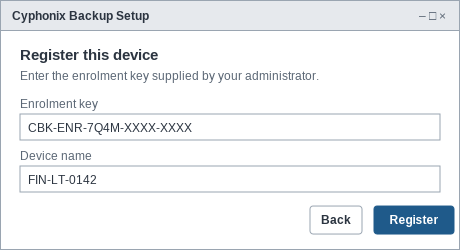
For unattended installs, pass the key on the command line instead:
msiexec /i cbk-agent-4.6.2-x64.msi /qn ENROLKEY=CBK-ENR-7Q4M-XXXX-XXXX4. Check what will be backed up
The default policy for workstations backs up user profiles (C:\Users) apart from the standard exclusions. To add or remove folders, open the agent from the notification area and choose Settings › Sources, or edit the policy in the console.
5. Run the first backup
Click Back up now. The first backup uploads everything and can take several hours; later backups send only what has changed. The device can be used normally and can be shut down part-way through. The backup resumes where it stopped.
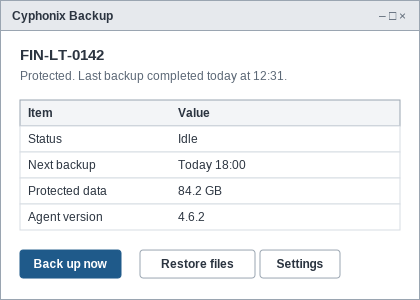
6. Confirm in the console
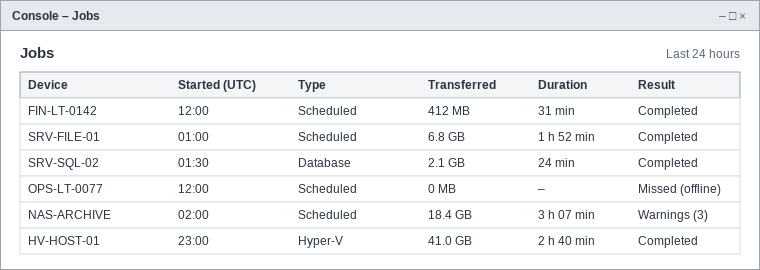
The job appears under Jobs with a result of Completed.
7. Test a restore
Do not skip this step. Restore one file to an alternative location and open it. See File-level restore.
Next steps
- Roll out to more devices using the onboarding checklist
- Review the schedule and retention policies
- Set up notifications